# Context7 MCP - Up-to-date Docs For Any Prompt
[](https://context7.com) [](https://smithery.ai/server/@upstash/context7-mcp) [ ](https://insiders.vscode.dev/redirect?url=vscode%3Amcp%2Finstall%3F%257B%2522name%2522%253A%2522context7%2522%252C%2522config%2522%253A%257B%2522command%2522%253A%2522npx%2522%252C%2522args%2522%253A%255B%2522-y%2522%252C%2522%2540upstash%252Fcontext7-mcp%2540latest%2522%255D%257D%257D)
[](./docs/README.zh-CN.md) [](./docs/README.ko.md)
## ❌ Without Context7
LLMs rely on outdated or generic information about the libraries you use. You get:
- ❌ Code examples are outdated and based on year-old training data
- ❌ Hallucinated APIs don't even exist
- ❌ Generic answers for old package versions
## ✅ With Context7
Context7 MCP pulls up-to-date, version-specific documentation and code examples straight from the source — and places them directly into your prompt.
Add `use context7` to your prompt in Cursor:
```txt
Create a basic Next.js project with app router. use context7
```
```txt
Create a script to delete the rows where the city is "" given PostgreSQL credentials. use context7
```
Context7 fetches up-to-date code examples and documentation right into your LLM's context.
- 1️⃣ Write your prompt naturally
- 2️⃣ Tell the LLM to `use context7`
- 3️⃣ Get working code answers
No tab-switching, no hallucinated APIs that don't exist, no outdated code generations.
## 🛠️ Getting Started
### Requirements
- Node.js >= v18.0.0
- Cursor, Windsurf, Claude Desktop or another MCP Client
### Installing via Smithery
To install Context7 MCP Server for Claude Desktop automatically via [Smithery](https://smithery.ai/server/@upstash/context7-mcp):
```bash
npx -y @smithery/cli install @upstash/context7-mcp --client claude
```
### Install in Cursor
Go to: `Settings` -> `Cursor Settings` -> `MCP` -> `Add new global MCP server`
Pasting the following configuration into your Cursor `~/.cursor/mcp.json` file is the recommended approach. See [Cursor MCP docs](https://docs.cursor.com/context/model-context-protocol) for more info.
```json
{
"mcpServers": {
"context7": {
"command": "npx",
"args": ["-y", "@upstash/context7-mcp@latest"]
}
}
}
```
](https://insiders.vscode.dev/redirect?url=vscode%3Amcp%2Finstall%3F%257B%2522name%2522%253A%2522context7%2522%252C%2522config%2522%253A%257B%2522command%2522%253A%2522npx%2522%252C%2522args%2522%253A%255B%2522-y%2522%252C%2522%2540upstash%252Fcontext7-mcp%2540latest%2522%255D%257D%257D)
[](./docs/README.zh-CN.md) [](./docs/README.ko.md)
## ❌ Without Context7
LLMs rely on outdated or generic information about the libraries you use. You get:
- ❌ Code examples are outdated and based on year-old training data
- ❌ Hallucinated APIs don't even exist
- ❌ Generic answers for old package versions
## ✅ With Context7
Context7 MCP pulls up-to-date, version-specific documentation and code examples straight from the source — and places them directly into your prompt.
Add `use context7` to your prompt in Cursor:
```txt
Create a basic Next.js project with app router. use context7
```
```txt
Create a script to delete the rows where the city is "" given PostgreSQL credentials. use context7
```
Context7 fetches up-to-date code examples and documentation right into your LLM's context.
- 1️⃣ Write your prompt naturally
- 2️⃣ Tell the LLM to `use context7`
- 3️⃣ Get working code answers
No tab-switching, no hallucinated APIs that don't exist, no outdated code generations.
## 🛠️ Getting Started
### Requirements
- Node.js >= v18.0.0
- Cursor, Windsurf, Claude Desktop or another MCP Client
### Installing via Smithery
To install Context7 MCP Server for Claude Desktop automatically via [Smithery](https://smithery.ai/server/@upstash/context7-mcp):
```bash
npx -y @smithery/cli install @upstash/context7-mcp --client claude
```
### Install in Cursor
Go to: `Settings` -> `Cursor Settings` -> `MCP` -> `Add new global MCP server`
Pasting the following configuration into your Cursor `~/.cursor/mcp.json` file is the recommended approach. See [Cursor MCP docs](https://docs.cursor.com/context/model-context-protocol) for more info.
```json
{
"mcpServers": {
"context7": {
"command": "npx",
"args": ["-y", "@upstash/context7-mcp@latest"]
}
}
}
```
Alternative: Use Bun
```json
{
"mcpServers": {
"context7": {
"command": "bunx",
"args": ["-y", "@upstash/context7-mcp@latest"]
}
}
}
```
Alternative: Use Deno
```json
{
"mcpServers": {
"context7": {
"command": "deno",
"args": ["run", "--allow-net", "npm:@upstash/context7-mcp"]
}
}
}
```
### Install in Windsurf
Add this to your Windsurf MCP config file. See [Windsurf MCP docs](https://docs.windsurf.com/windsurf/mcp) for more info.
```json
{
"mcpServers": {
"context7": {
"command": "npx",
"args": ["-y", "@upstash/context7-mcp@latest"]
}
}
}
```
### Install in VS Code
[](https://insiders.vscode.dev/redirect?url=vscode%3Amcp%2Finstall%3F%257B%2522name%2522%253A%2522context7%2522%252C%2522config%2522%253A%257B%2522command%2522%253A%2522npx%2522%252C%2522args%2522%253A%255B%2522-y%2522%252C%2522%2540upstash%252Fcontext7-mcp%2540latest%2522%255D%257D%257D)
[ ](https://insiders.vscode.dev/redirect?url=vscode-insiders%3Amcp%2Finstall%3F%257B%2522name%2522%253A%2522context7%2522%252C%2522config%2522%253A%257B%2522command%2522%253A%2522npx%2522%252C%2522args%2522%253A%255B%2522-y%2522%252C%2522%2540upstash%252Fcontext7-mcp%2540latest%2522%255D%257D%257D)
Add this to your VS Code MCP config file. See [VS Code MCP docs](https://code.visualstudio.com/docs/copilot/chat/mcp-servers) for more info.
```json
{
"servers": {
"Context7": {
"type": "stdio",
"command": "npx",
"args": ["-y", "@upstash/context7-mcp@latest"]
}
}
}
```
### Install in Claude Code
Run this command. See [Claude Code MCP docs](https://docs.anthropic.com/en/docs/agents-and-tools/claude-code/tutorials#set-up-model-context-protocol-mcp) for more info.
```sh
claude mcp add context7 -- npx -y @upstash/context7-mcp@latest
```
### Install in Claude Desktop
Add this to your Claude Desktop `claude_desktop_config.json` file. See [Claude Desktop MCP docs](https://modelcontextprotocol.io/quickstart/user) for more info.
```json
{
"mcpServers": {
"Context7": {
"command": "npx",
"args": ["-y", "@upstash/context7-mcp@latest"]
}
}
}
```
### Available Tools
- `resolve-library-id`: Resolves a general library name into a Context7-compatible library ID.
- `libraryName` (required)
- `get-library-docs`: Fetches documentation for a library using a Context7-compatible library ID.
- `context7CompatibleLibraryID` (required)
- `topic` (optional): Focus the docs on a specific topic (e.g., "routing", "hooks")
- `tokens` (optional, default 5000): Max number of tokens to return. Values less than 5000 are automatically increased to 5000.
## Development
Clone the project and install dependencies:
```bash
bun i
```
Build:
```bash
bun run build
```
### Local Configuration Example
```json
{
"mcpServers": {
"context7": {
"command": "npx",
"args": ["tsx", "/path/to/folder/context7-mcp/src/index.ts"]
}
}
}
```
### Testing with MCP Inspector
```bash
npx -y @modelcontextprotocol/inspector npx @upstash/context7-mcp@latest
```
## Troubleshooting
### ERR_MODULE_NOT_FOUND
If you see this error, try using `bunx` instead of `npx`.
```json
{
"mcpServers": {
"context7": {
"command": "bunx",
"args": ["-y", "@upstash/context7-mcp@latest"]
}
}
}
```
This often resolves module resolution issues, especially in environments where `npx` does not properly install or resolve packages.
### MCP Client Errors
1. Try removing `@latest` from the package name.
2. Try using `bunx` as an alternative.
3. Try using `deno` as an alternative.
## Context7 In Media
- [Better Stack: "Free Tool Makes Cursor 10x Smarter"](https://youtu.be/52FC3qObp9E)
- [Cole Medin: "This is Hands Down the BEST MCP Server for AI Coding Assistants"](https://www.youtube.com/watch?v=G7gK8H6u7Rs)
- [Income stream surfers: "Context7 + SequentialThinking MCPs: Is This AGI?"](https://www.youtube.com/watch?v=-ggvzyLpK6o)
- [Julian Goldie SEO: "Context7: New MCP AI Agent Update"](https://www.youtube.com/watch?v=CTZm6fBYisc)
- [JeredBlu: "Context 7 MCP: Get Documentation Instantly + VS Code Setup"](https://www.youtube.com/watch?v=-ls0D-rtET4)
- [Income stream surfers: "Context7: The New MCP Server That Will CHANGE AI Coding"](https://www.youtube.com/watch?v=PS-2Azb-C3M)
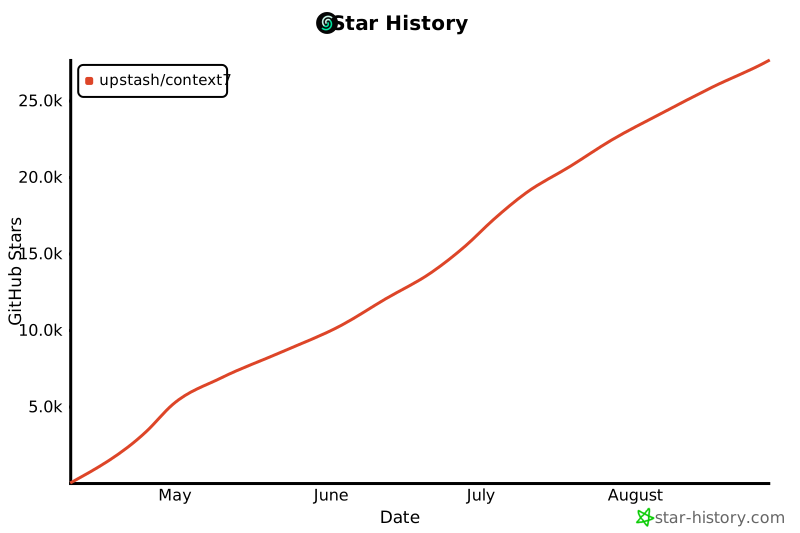
## Star History
[](https://www.star-history.com/#upstash/context7&Date)
## License
MIT
](https://insiders.vscode.dev/redirect?url=vscode-insiders%3Amcp%2Finstall%3F%257B%2522name%2522%253A%2522context7%2522%252C%2522config%2522%253A%257B%2522command%2522%253A%2522npx%2522%252C%2522args%2522%253A%255B%2522-y%2522%252C%2522%2540upstash%252Fcontext7-mcp%2540latest%2522%255D%257D%257D)
Add this to your VS Code MCP config file. See [VS Code MCP docs](https://code.visualstudio.com/docs/copilot/chat/mcp-servers) for more info.
```json
{
"servers": {
"Context7": {
"type": "stdio",
"command": "npx",
"args": ["-y", "@upstash/context7-mcp@latest"]
}
}
}
```
### Install in Claude Code
Run this command. See [Claude Code MCP docs](https://docs.anthropic.com/en/docs/agents-and-tools/claude-code/tutorials#set-up-model-context-protocol-mcp) for more info.
```sh
claude mcp add context7 -- npx -y @upstash/context7-mcp@latest
```
### Install in Claude Desktop
Add this to your Claude Desktop `claude_desktop_config.json` file. See [Claude Desktop MCP docs](https://modelcontextprotocol.io/quickstart/user) for more info.
```json
{
"mcpServers": {
"Context7": {
"command": "npx",
"args": ["-y", "@upstash/context7-mcp@latest"]
}
}
}
```
### Available Tools
- `resolve-library-id`: Resolves a general library name into a Context7-compatible library ID.
- `libraryName` (required)
- `get-library-docs`: Fetches documentation for a library using a Context7-compatible library ID.
- `context7CompatibleLibraryID` (required)
- `topic` (optional): Focus the docs on a specific topic (e.g., "routing", "hooks")
- `tokens` (optional, default 5000): Max number of tokens to return. Values less than 5000 are automatically increased to 5000.
## Development
Clone the project and install dependencies:
```bash
bun i
```
Build:
```bash
bun run build
```
### Local Configuration Example
```json
{
"mcpServers": {
"context7": {
"command": "npx",
"args": ["tsx", "/path/to/folder/context7-mcp/src/index.ts"]
}
}
}
```
### Testing with MCP Inspector
```bash
npx -y @modelcontextprotocol/inspector npx @upstash/context7-mcp@latest
```
## Troubleshooting
### ERR_MODULE_NOT_FOUND
If you see this error, try using `bunx` instead of `npx`.
```json
{
"mcpServers": {
"context7": {
"command": "bunx",
"args": ["-y", "@upstash/context7-mcp@latest"]
}
}
}
```
This often resolves module resolution issues, especially in environments where `npx` does not properly install or resolve packages.
### MCP Client Errors
1. Try removing `@latest` from the package name.
2. Try using `bunx` as an alternative.
3. Try using `deno` as an alternative.
## Context7 In Media
- [Better Stack: "Free Tool Makes Cursor 10x Smarter"](https://youtu.be/52FC3qObp9E)
- [Cole Medin: "This is Hands Down the BEST MCP Server for AI Coding Assistants"](https://www.youtube.com/watch?v=G7gK8H6u7Rs)
- [Income stream surfers: "Context7 + SequentialThinking MCPs: Is This AGI?"](https://www.youtube.com/watch?v=-ggvzyLpK6o)
- [Julian Goldie SEO: "Context7: New MCP AI Agent Update"](https://www.youtube.com/watch?v=CTZm6fBYisc)
- [JeredBlu: "Context 7 MCP: Get Documentation Instantly + VS Code Setup"](https://www.youtube.com/watch?v=-ls0D-rtET4)
- [Income stream surfers: "Context7: The New MCP Server That Will CHANGE AI Coding"](https://www.youtube.com/watch?v=PS-2Azb-C3M)
## Star History
[](https://www.star-history.com/#upstash/context7&Date)
## License
MIT